Your Freebox Delta refuses to connect, the TV image freezes, or the Wi-Fi disappears for no apparent reason. Before contacting support, a simple, well-executed restart resolves the majority of these issues. However, it’s important to know which method to use depending on the situation, as unplugging the box recklessly is not always the best idea.
What really happens in the Freebox Delta during a restart
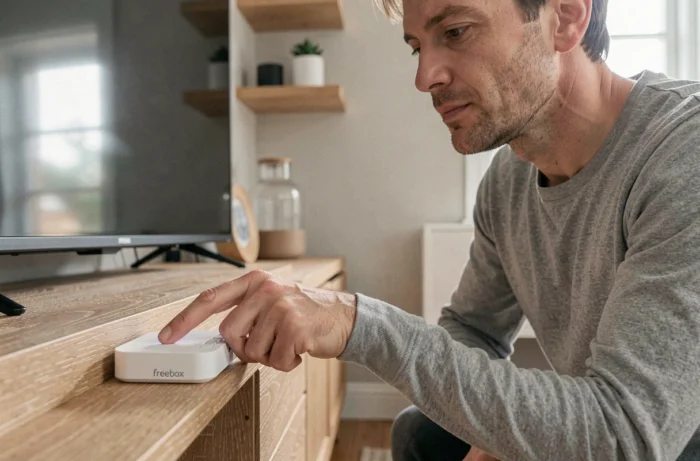
When you restart the Server of your Freebox Delta, the system clears its RAM, reloads the firmware, and re-establishes synchronization with the Free network. This cycle helps purge the minor software errors accumulated over the days.
Contrary to what one might think, the restart does not affect your Wi-Fi settings or your TV recordings. Your network settings, passwords, and custom configurations remain intact. A factory reset, on the other hand, erases everything. The two operations are not related.
A point often overlooked: Free has deployed the Server update 4.12.3, which specifically fixes a Wi-Fi bug. This update only applies after a manual restart of the Server. If your wireless connection deteriorates inexplicably, a simple reboot may be enough to install the pending fix.
For those who wish to delve deeper into the topic, a guide to restarting a Freebox Delta details the differences between each restart method.
Restarting the Freebox Delta from the Freebox Connect app
The Freebox Connect app (available on iOS and Android) has become the most convenient method to control your box remotely. You do not need to be in the same room as the device.
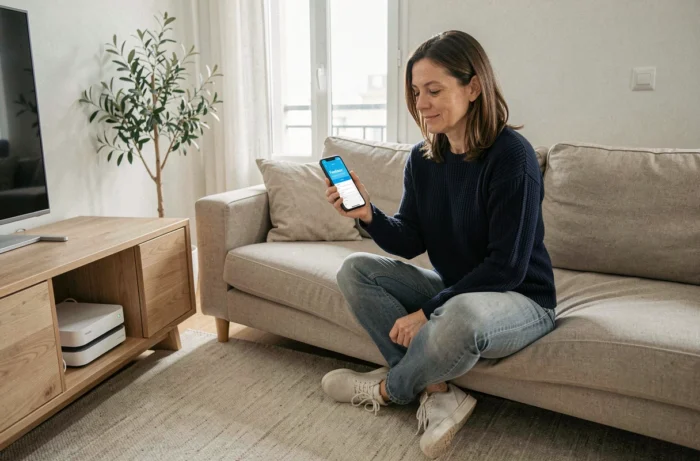
Here are the concrete steps:
- Open the Freebox Connect app on your phone and log in to your Free account.
- Go to the Freebox Server section, then tap “Restart the Freebox Server”.
- Confirm the operation and wait a few minutes for the device to fully restart.
The Player (the TV part) restarts separately. If the image is the issue, go to the Player settings via the remote control, then System, then Restart.
You can also use Freebox OS from a web browser by accessing your box’s local interface. This option works even when the mobile app is unresponsive, as long as your computer is connected via wired or Wi-Fi to the local network.
Cold restart of the Freebox Delta: when unplugging becomes necessary
Have you ever seen your Freebox Delta stuck on the initial startup steps, the screen frozen on “Step 1” or “Step 3” without ever progressing? In this specific case, neither the app nor Freebox OS can help you, as the Server does not complete its initialization.
The solution: a cold restart with a complete power cut. Unplug the power cable from the Server, wait at least a full minute, then plug it back in. This delay allows the internal capacitors to discharge and the firmware to start from a clean state.
Why a minute and not ten seconds? Because a time too short is not sufficient to discharge the electronic components of their residual charge. The Server may then restart in the same blocked state.
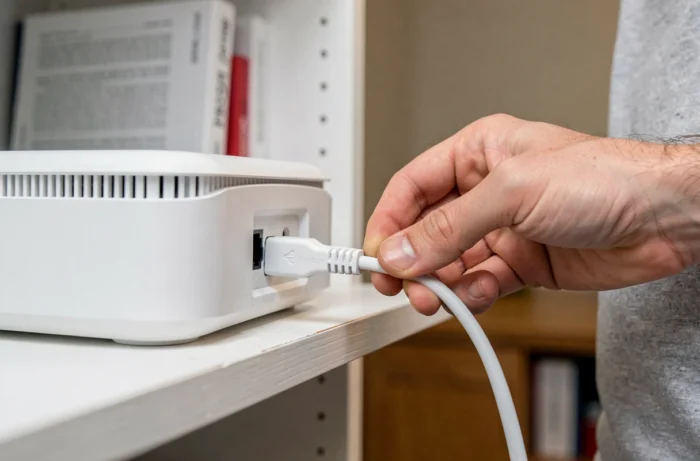
Some precautions to follow during this operation:
- First unplug the Server, then the Player if necessary. When plugging back in, reconnect the Server first and wait until it is fully operational before turning on the Player.
- Do not touch the fiber optic cable during the operation. An accidental disconnection of the fiber can lead to a longer loss of synchronization.
- If the Server’s touchscreen displays the Free logo upon restart, you can press it to access a technical menu that includes restoring factory settings. Select this option only if the simple restart fails, as it erases all your settings.
Freebox Delta Server and Player: two devices, two restart logics
The Freebox Delta consists of two distinct devices. The Server manages the internet connection, Wi-Fi, and local network. The Player manages the TV display, applications, and decoder.
When your internet connection drops, it is the Server that needs to be restarted. When the TV image freezes or an application crashes, it is the Player that requires a reboot. Restarting both at the same time works, but unnecessarily prolongs the downtime.
For the Player, the most direct method is through the Free remote control: Settings, then System, then Restart. If the remote control is unresponsive, it does not reset in the traditional sense. It is a re-association: stand within three meters of the Player and hold the pairing button.
The Server, on the other hand, can be restarted via the Freebox Connect app, via Freebox OS, or by cutting the power. Each device has its own restart methods, and confusing them leads to addressing the wrong problem.
Avoid unnecessary restarts: identify the real problem with Freebox Delta
A restart resolves temporary bugs, not hardware failures or network outages on Free’s side. Before restarting your box, check two simple things.
First, look at the Server’s indicators. If the fiber indicator is off, the problem likely lies with the line or a network incident in your area. Restarting will not change anything. Check the Free network status page or wait a few tens of minutes.
Next, test the wired connection. If an Ethernet cable plugged directly into the Server provides normal internet access, the issue concerns only the Wi-Fi or the Player. You will then know exactly which device to restart.
One last reflex to adopt: after each restart, let the Freebox Delta complete its startup sequence before testing anything. Full synchronization takes several minutes, and intervening too early skews the diagnosis.